Dictation and transcription both turn speech into text, but at different moments. Dictation is live: you speak and your words appear in whatever text field you are typing in, a message, an email, a note. Transcription works on a recording: you capture the audio first, then turn it into text with timestamps you can tap to hear the audio behind each line.
On iPhone, that splits neatly. Dictation is the microphone button on the keyboard. Transcription is Voice Memos, Notes, or an app like ScribeKit, which I make. ScribeKit is a transcription app, not a dictation tool, so I will say plainly where Dictation is the better choice. For most short texts, it is.
What is the difference between dictation and transcription?
The simplest test is who is speaking and when the text appears.
With dictation, you are talking to the device on purpose. You speak in short bursts, you watch the words land, you fix a word and carry on. The output is the finished text itself: a reply to a friend, a shopping list, a paragraph of an email. Nobody keeps the audio, and nobody needs to.
With transcription, the audio comes first and matters on its own. It might be an hour-long lecture, an interview, a meeting, a voice memo you recorded on a walk, or a file someone sent you. You were not speaking to a keyboard, and often you were not the one speaking at all. The text is a record of what was said, so you want timestamps, the ability to replay a passage, and a way to check a quote against the audio.
The word "transcription" has an older meaning too: a person listening to a recording and typing it out. Software has collapsed both jobs into the phone, but the split is the same: speaking now versus processing a recording.
| Question | Dictation | Transcription |
|---|---|---|
| When does text appear? | Live, as you speak | From a recording, usually after it ends |
| Who is speaking? | You, to the device | Anyone: you, a lecturer, an interviewee, a group |
| Where does the text go? | Into the text field you are typing in | Into a transcript tied to the audio |
| Is the audio kept? | No, only the text | Yes, the recording stays with the text |
| Timestamps and playback | No | Yes, jump to the moment a line was said |
| Typical length | A sentence to a few paragraphs | Minutes to hours |
| Works on an existing file? | No | Yes |
How does iPhone Dictation work?
Apple's iPhone User Guide page on Dictation opens with the key line: "With Dictation on iPhone, you can dictate text anywhere you can type it." The keyboard stays open while you dictate, so you can switch between typing and speaking.
To turn it on, open Settings, tap General, tap Keyboard, and turn on Enable Dictation. Then, in any text field, tap the microphone button on the keyboard and start speaking. A few details from the same guide that are worth knowing:
- Punctuation: in supported languages, Dictation inserts commas, periods and question marks on its own. You can turn that off with Auto-Punctuation in the same Keyboard settings, or say the punctuation mark out loud.
- Editing by voice: you can say "new line", "new paragraph", spell a word letter by letter, or say "select" or "delete" followed by a phrase.
- Stopping: tap the microphone button, say "Stop dictation", or stay silent for 30 seconds and it stops automatically. Apple does not list a maximum length.
- Languages: "When you use a keyboard for another language, you can use Dictation in that language as well." So you add a keyboard to dictate in a new language.
On iOS 27, Apple adds that with Apple Intelligence, "dictation uses an on-device model to improve spelling, punctuation, and capitalization," available in English on iPhone 17 Pro, iPhone 17 Pro Max, iPhone Air or later.
Does iPhone Dictation send your voice to Apple?
It depends on the language and device, and Apple tells you where to look. The User Guide says: "Dictation is processed on your iPhone in many languages, and no internet connection is required." It adds one exception: "When you dictate in a search field, your dictated text may be sent to the search engine to process the search."
Apple's Siri, Dictation and Privacy page gives the rule for the cases that are not on the device: "your device will indicate in Keyboard Settings if your audio and transcripts are processed on your device and not sent to Apple servers. Otherwise, the things you dictate are sent to and processed on the server, but will not be stored unless you opt in to Improve Siri and Dictation."
So to check your own phone, open Settings, General, Keyboard and read the text under the Dictation switch, or tap About Dictation and Privacy there. Apple does not publish a single list of which languages run on the device on these pages, so I will not guess one here. The same privacy page explains how to delete stored history: Settings, Siri, Siri and Dictation History, then Delete Siri and Dictation History.
When should you use dictation, and when transcription?
Use Dictation when the words are yours and they are going straight into a text field:
- Replying to messages and emails when typing is awkward.
- Writing a note, a to-do list or a first draft by talking.
- Filling in a form or a search field.
- Accessibility: if typing is slow or painful, Dictation is built into every keyboard and costs nothing.
Use transcription when the recording itself matters, or the speaker is not you talking to a keyboard:
- Interviews, where you need to check quotes against the audio.
- Lectures and talks, where you want to search and jump back to the part you missed.
- Meetings, recorded with everyone's consent, to keep a record.
- Voice memos, ideas you recorded while walking or driving and want as text later.
- Files someone sent you: a WhatsApp voice message, an M4A from a recorder, an MP3 clip.
It is tempting to play a recording out loud next to the phone with Dictation on. Dictation listens to the microphone in real time, stops after 30 seconds of silence and puts the text into a field with no timestamps, so it is the wrong tool for that job. A transcription tool takes the file directly.
Can Voice Memos and Notes transcribe on iPhone?
Yes, and they are the first thing to try. Apple's Voice Memos guide says: "Audio transcription is available on iPhone 12 or later in English (all variants), Spanish, Portuguese, Italian, French, German, Japanese, Korean, Simplified Chinese, and Traditional Chinese. It's not available in all countries or regions." You can see the transcript while recording or afterwards, from the More button, with View Transcript or Copy Transcript.
The Notes guide offers the same for audio recorded inside a note with Record Audio, "when the device language is set to" one of those ten languages.
These are real transcription features, with a live transcript and a playhead that follows the text. Their limits are worth knowing before you rely on them:
- iPhone 12 or later only. An iPhone 11 or iPhone SE (2nd generation) runs iOS 27 but does not get them.
- Ten languages, with no language picker documented. A recording in Polish, Dutch or Ukrainian gets no transcript.
- No file import. Both guides describe transcripts for audio recorded in those apps. Neither describes a way to bring in an audio file from Files, Mail or a chat app.
If the Transcript option is missing on your phone, How to transcribe voice memos on iPhone walks through every reason and fix.
How do I transcribe a voice recording on my iPhone?
If Voice Memos covers your phone and language, use it. When it doesn't, or the recording came from somewhere else, ScribeKit is what I built for that gap. It runs on any iPhone or iPad with iOS 18 or later, including the iPhone 11, and the speech model is inside the app, so the audio is transcribed on the phone and never uploaded.
There are three ways in:
- Record in the app. Tap record; you can pause and stop from the Lock Screen or the Dynamic Island. ScribeKit transcribes when you stop.
- Import from Files. Pick an M4A, MP3, WAV, AIFF or CAF file from Files or iCloud Drive. Imports are audio only, so a video file has to be turned into an audio file first.
- Share from Voice Memos or another app. In Voice Memos, tap the recording, tap More, then Share, and choose ScribeKit. The same share sheet works from Mail, Files and most chat apps.
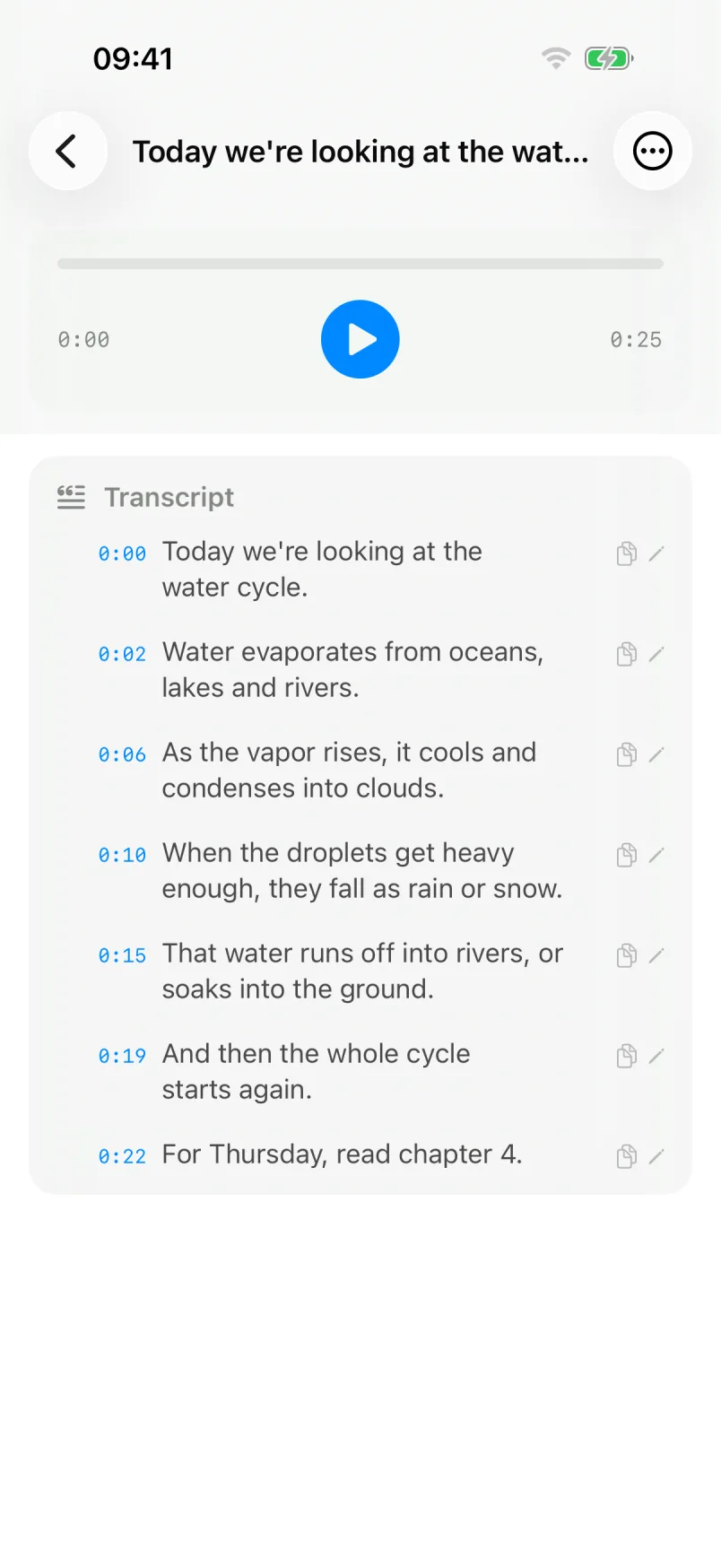
You get a transcript split into timestamped segments: tap a line to play it, search across all your transcripts, copy plain or timestamped text, or share it. For more on formats and long files, see How to transcribe an M4A, MP3 or WAV file on iPhone.
The limits, stated plainly. The free tier gives you 10 new transcriptions a month, each recording or import up to 30 minutes, in 25 languages detected automatically. ScribeKit Pro removes the monthly limit, allows up to 3 hours per recording (90 minutes while a Whisper model is active) and adds Whisper models for 100+ languages after a one-time download. Pro is $1.99 a month, $9.99 a year with a 7-day free trial, or $19.99 once (prices vary by country).
What it doesn't do: no speaker labels, no live transcript while you record, no AI summaries, no keyboard or dictation feature, no Mac app and no Apple Watch app. One network detail: when the phone is online, ScribeKit checks your Pro status with RevenueCat when it opens, using an anonymous ID and your purchase history, never your audio or text.
So which should you use?
Both, for different jobs. Keep Dictation for the words you would otherwise type: it is free, it is already in every keyboard, and Apple says it runs on the iPhone in many languages. Reach for transcription when there is a recording worth keeping, whether it is a lecture, an interview or a voice memo, and you want text you can search and check against the audio. Start with Voice Memos if your iPhone and language are covered, and use an app that transcribes on the device when they are not.