Your iPhone can't transcribe an audio file with its built-in apps: Voice Memos and Notes only transcribe audio recorded in them. To transcribe an M4A, MP3 or WAV file, share it from Files, Mail or WhatsApp to an app that transcribes on the device. ScribeKit does it for free for files up to 30 minutes, without uploading anything.
I make ScribeKit, so I will also point out where another app is the better fit.
Can Voice Memos transcribe an audio file?
No. Apple's Voice Memos guide describes transcripts for recordings you make in Voice Memos, and older Voice Memos recordings, which it transcribes automatically when you open them. It describes no way to bring in an M4A, MP3 or WAV from somewhere else. The Notes guide is the same: it transcribes audio recorded in a note with Record Audio.
On top of that, both need an iPhone 12 or later and one of ten languages. So a lecture recording a classmate sent you, an interview from a handheld recorder, a podcast clip or a WhatsApp voice note has no built-in route to text. If you are trying to transcribe your own memos, the Voice Memos guide covers the built-in transcript and what to do when it is missing.
How to transcribe an M4A, MP3 or WAV from Files, Mail or iCloud Drive
ScribeKit has a share extension, so the route is the same from almost any app. It runs on any iPhone or iPad with iOS 18 or later, with no account and no download beyond the app itself.
From Files, Mail or another app:
- Install ScribeKit and open it once.
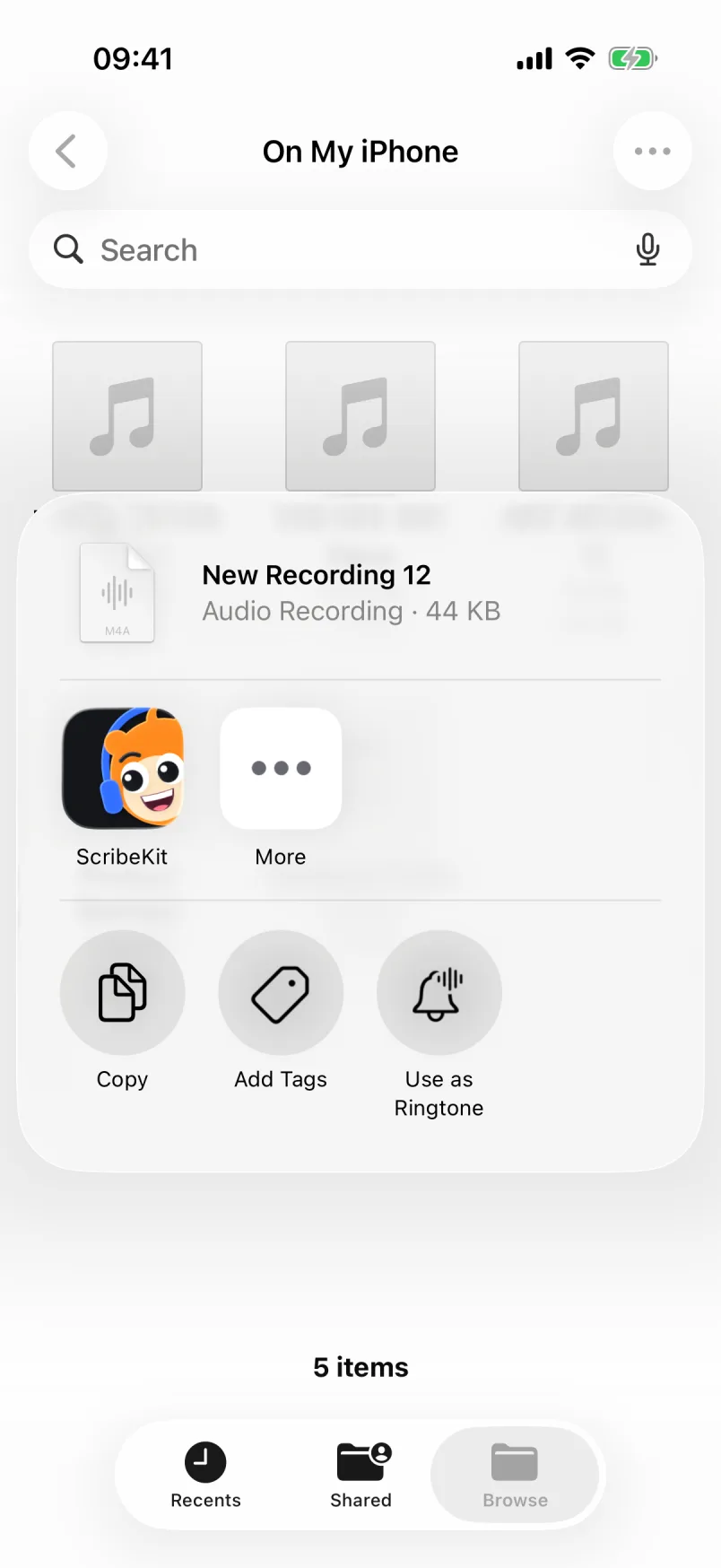
- Find the audio file. In Files, long-press it (or open it) and tap Share. In Mail, tap the attachment, then the Share button.
- Tap ScribeKit in the share sheet. If it is not shown, tap More at the end of the app row.
- ScribeKit lists the file with its length. Tap Add to ScribeKit, then Done.
- Open ScribeKit. It picks up the file and transcribes it on the phone.
From inside the app: tap the folder button next to Record on the home screen and pick the file in the Files browser.
If the file is in iCloud Drive and has not been downloaded to the phone yet, ScribeKit can't read it and will tell you to open it in Files first. Tap the file in Files once so it downloads, then share it again.
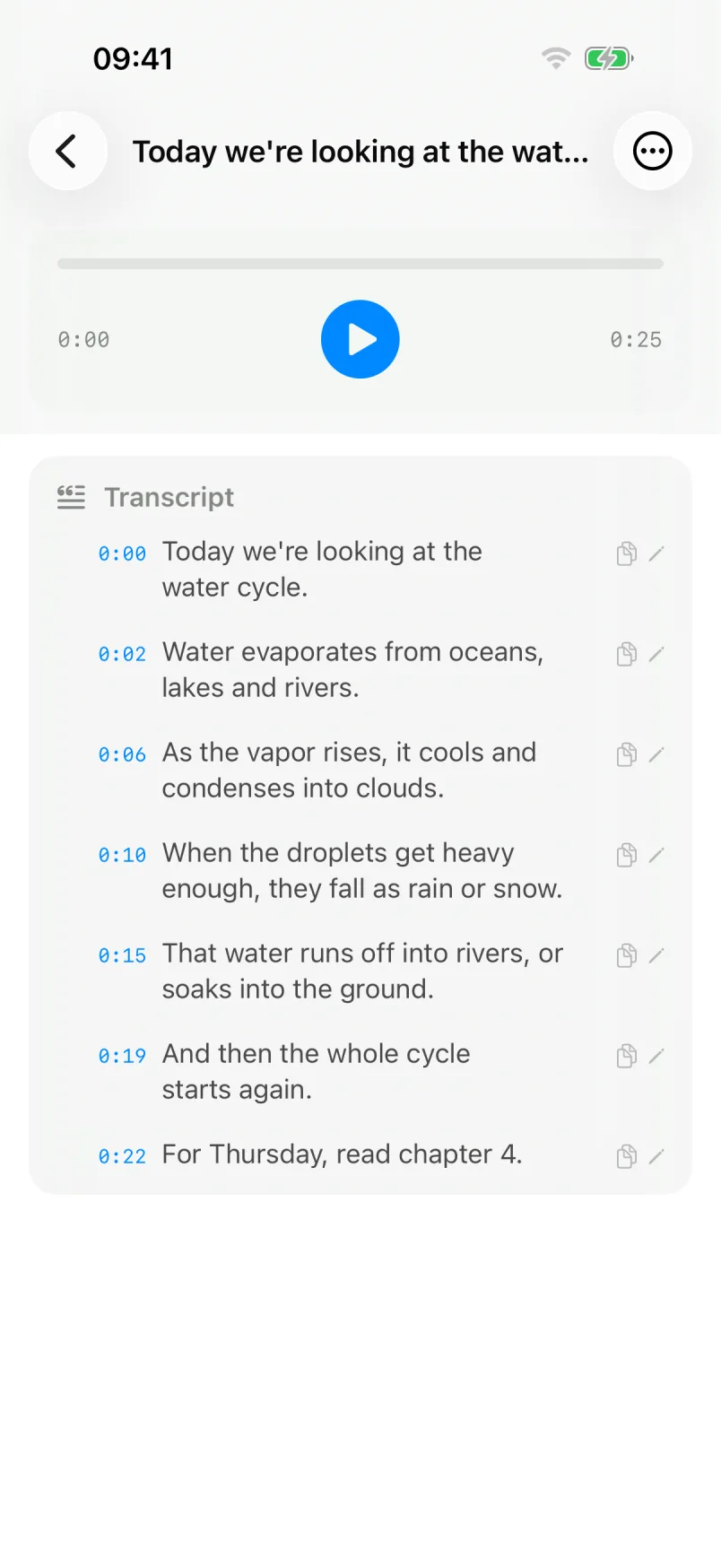
When it finishes, the transcript is split into timestamped segments. Tap a line to hear that moment, search across every transcript, copy plain or timestamped text, or share it. There are no speaker labels and no AI summaries, so an interview comes out as one continuous transcript, not a dialogue.
Can I transcribe a WhatsApp voice message on iPhone?
Yes, in two ways, and the first one is built into WhatsApp. WhatsApp's own announcement says its voice message transcripts "are generated on your device". Turn them on in WhatsApp under Settings, Chats, Voice message transcripts, choose the language, then long-press a voice message and tap Transcribe. For a quick read of a single message, that is the easiest option.
If you want to keep the text, search it later or hear a specific sentence again, share the voice message to ScribeKit instead. In WhatsApp, long-press the voice message, tap Forward, then tap the Share button and choose ScribeKit. WhatsApp's menus change from version to version, so if you don't see Share there, save the message to Files first and share it from Files.
What audio formats work?
ScribeKit takes audio files that iOS itself can read. That includes the common ones:
- M4A (Voice Memos, many recorder apps)
- MP3
- WAV
- AIFF and CAF
If a file is refused, the app says why rather than failing quietly: "This file doesn't contain any audio" for a file with no audio track, or "Couldn't read this file" when iOS can't open it.
Video files are the main gap. ScribeKit only accepts audio, so a MOV screen recording or an MP4 lecture video will not show up in the import list. If you only have a video, the audio has to be saved as a separate audio file before ScribeKit can take it.
Language matters as much as format. ScribeKit's built-in model covers 25 European languages and detects which one is spoken. For Japanese, Korean, Chinese or one of about 70 others, you need a Whisper model, which is part of Pro and needs a one-time download. The full list is in Voice Memos transcription languages.
What about files longer than 30 minutes?
The free tier takes files up to 30 minutes each, and 10 new transcriptions a month. A longer file is refused with a message telling you the limit before anything is transcribed. You have three options.
ScribeKit Pro. Files up to 3 hours, no monthly cap, plus Whisper models, folders, widgets and ZIP export. It costs $1.99 a month, $9.99 a year with a 7-day free trial, or $19.99 once (prices vary by country). With a Whisper model active, the limit is 90 minutes per file because Whisper needs more memory; the built-in model handles the full 3 hours.
Split it, if it is a voice memo. Voice Memos can trim a recording and save the result as a new recording while leaving the original as it was (Apple's steps). Trim to the first half, save as new, then trim to the second half, save as new, and share both to ScribeKit. Each half counts as one of your 10 monthly transcriptions.
Use a computer. For an MP3 or WAV that is not in Voice Memos, splitting on the iPhone is awkward. Free desktop tools, including OpenAI's open-source Whisper, can handle long files on a computer, if you are comfortable moving the file there.
How long it takes depends on the length of the file and your iPhone's chip; newer chips are faster. A progress overlay shows how long it has been working. Nothing is sent anywhere while it does.
One thing that stays your responsibility: ScribeKit keeps the audio and text in its own storage on the phone, and your iPhone includes that storage in its backups like any other app's data. If the file is sensitive, check your iCloud Backup settings as well.